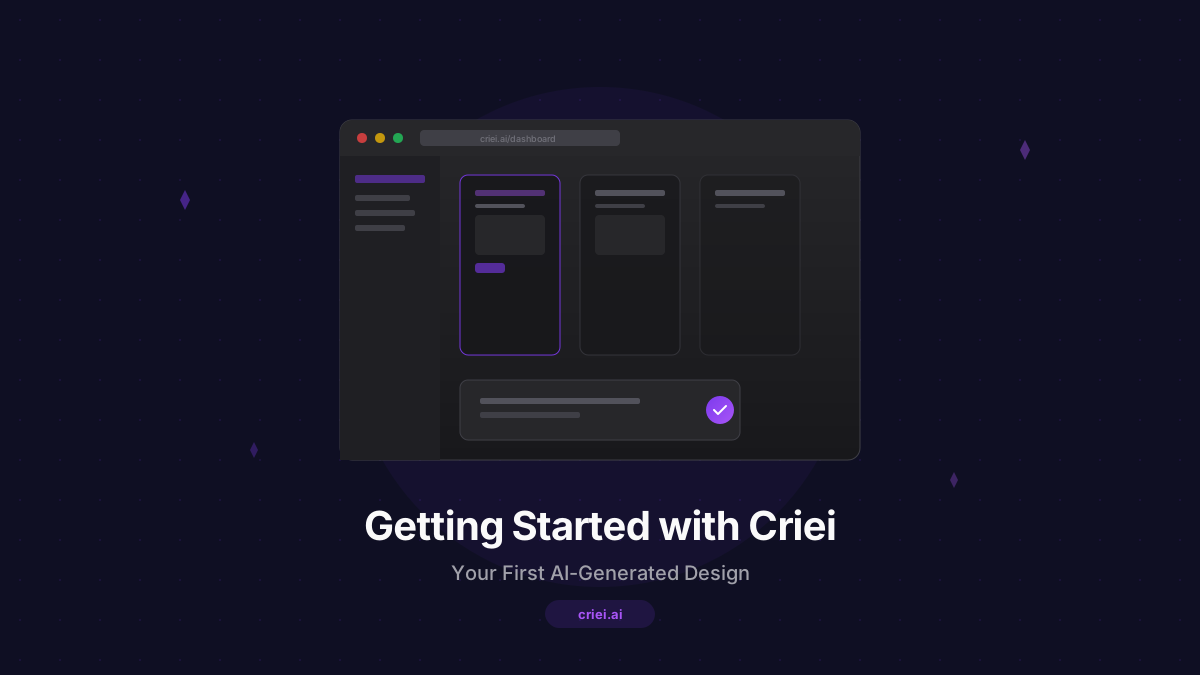
Getting Started with Criei: Your First AI-Generated Design
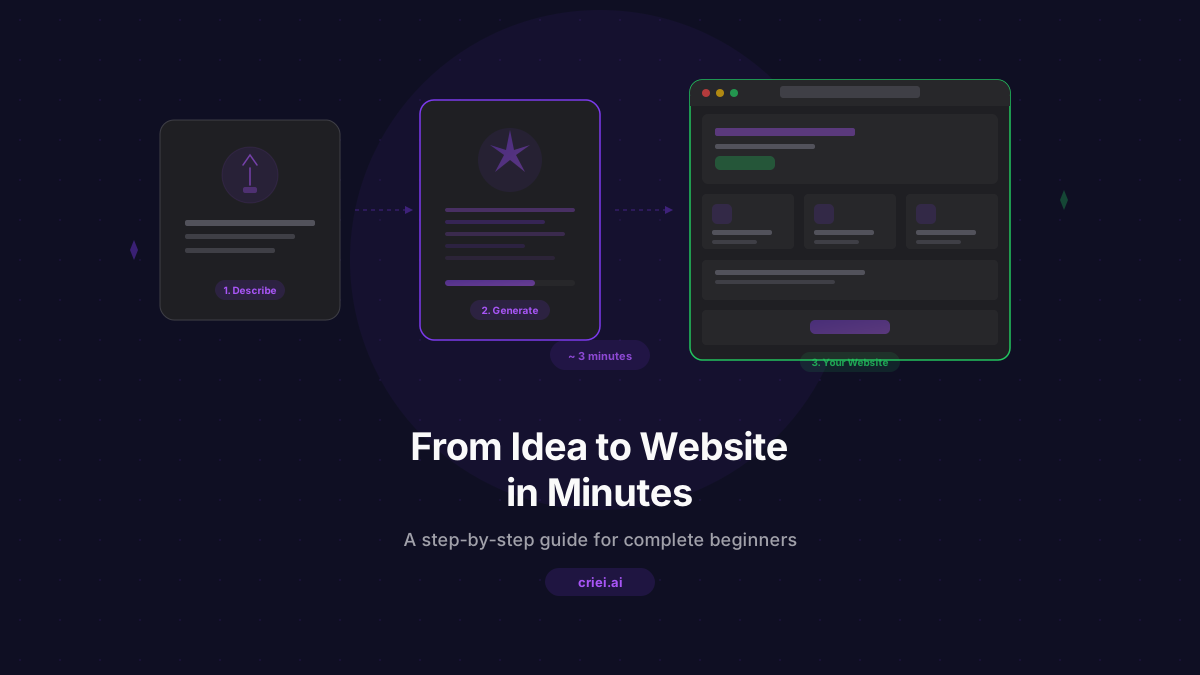
Welcome to criei.ai
Criei makes it easy to go from an idea to a polished design in seconds. Whether you're building a mobile app, a landing page, or an ad campaign, the AI handles the heavy lifting while you stay in creative control.
Step 1: Create a Project
After signing in, head to your dashboard and click New Project. Give it a name and select the format you want - mobile app, web app, landing page, or any of our other supported types.
Each format comes with its own canvas, frame chrome, and layout engine optimized for that medium.
Step 2: Write Your First Prompt
The key to great results is a clear, descriptive prompt. Instead of:
"Make me an app"
Try something like:
"A fitness tracking app with dark mode, workout logs, progress charts, and social features"
The more specific you are about features, style, and purpose, the better the AI can deliver.
Step 3: Watch the Magic Happen
Once you hit Enter, the AI creates a plan and starts generating screens one by one. You'll see them stream onto your canvas in real-time - no waiting for a batch to finish.
Step 4: Iterate and Refine
Click any screen to select it, then describe changes in the chat:
- "Make the header blue"
- "Add a testimonials section"
- "Use a two-column layout"
Each edit regenerates just that screen, keeping everything else intact. One credit per edit.
Step 5: Export
When you're happy with the result, export individual screens or the entire project as PNG files. Every design includes a commercial license, so you can use them anywhere.
Ready to try it? Head to your dashboard and create your first project.